The Script Editor
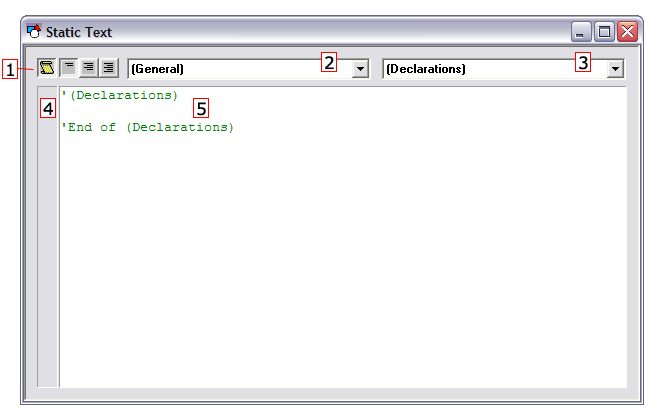
The HSS and CygNet Studio use the same script editor window. The layout of the Script Editor dialog box is described below.
|
1 |
Script View Buttons
|
|||||||||
|
2 |
Object Drop-Down Menu — Displays a list of objects |
|||||||||
|
3 |
Event Drop-Down Menu — Displays a list of events for the selected object |
|||||||||
|
4 |
Breakpoint/Bookmark Pane — Shows breakpoints and bookmarks next to lines of code. Left click next to a line of code to toggle a breakpoint or right-click to toggle a bookmark. |
|||||||||
|
5 |
Code Window — The code editor |


The script editor provides auto completion ("IntelliSense"), so that typing a recognized object will cause the object’s properties and methods to appear in a list box. When one of the items is selected, its data type or parameter data types will be displayed as an aid.
The code window distinguishes user code, comments, and keywords with different colors. Comments are green, keywords are blue, literal values are pink, and all other text is black.


